How to Send Files Quickly from Nokia N8- Nokia Smartphones, Just about every single gadget includes a optimum file size support, the Nokia N8 for example, I never expert this sort of issue. Yet to generally be certain that any person certainly not results in this issue. WinRar for your Nokia N8 does the work. You can compress a file in your Nokia N8 previously sending it to any place. Songs data files might be big from time to time. You will find a further method that it's possible to quickly send data files to you pc. You can read how to link your PC to your Nokia first.
As soon as the file is compressed, the data format is modified either to rar, .zip, .tar, .7z or .gzip. Your pc will be able to extract the entire file formats but my Nokia N8 is able to only extract .zip files. For those who aren’t considering following all of these ways, you certainly smartest choice would be to possibly copy or transfer the file to a USB or an external storage.
These two solutions are great but in the end of the day, I would like to have the file to my Computer so I could upload it, the quickest technique among these 2 is to copy the file to a USB or an external storage. To deliver a file to your Personal computer via e-mail could be busy that you need a WLAN connection or a data plan to move a file that huge.So its easy how to send files from the nokia N8, isn't?
Showing posts with label Nseries Tutorials. Show all posts
Showing posts with label Nseries Tutorials. Show all posts
Thursday, March 17, 2011

Sunday, March 13, 2011
How to Make Full Format Your Bricked N8
How to Make Full Format your bricked N8- Nokia Smartphones, Do you ever got "brick" problem after working to have fun with FontRouter on Nokia N8?. For that reason, I got information that there is way to recover it. Okay here is the solution to full format and create bricked N8 come alive for a second time:
- Now you must turn off your nokia N8 phone.
- After that Hold "Volume Down + Camera Key + Menu Key" and press power button till your Nokia N8 phone shake.
- Have to wait until display screen show correctly.
Make sure you be aware that I found these troubles after doing full format your bricked N8:
1. You can lost Ovi Maps. On the other hand, you could possibly reinstall it by download ovi maps here.
2. You can lost Ovi Store 2.0 and you can not reinstall it since it usually display "Unable to install".
Consequently make sure you do not do full format your bricked N8 if not required or really I must state that do it just as your last Decision.
Saturday, March 12, 2011
How to Set Up 6 Home screens on Nokia N8
How to Set Up 6 Home screens on Nokia N8- Nokia Smartphones, allow me to explain how to set up 6 (six) homescreens. You know that set up the 3 home screens on Nokia N8 or any other Symbian^3 device is really easy, right now we are going to discover ways to set up 6 home screens on our device.
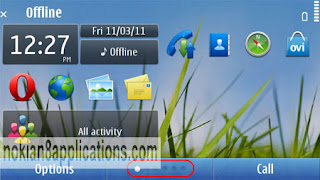
Notes before you set up 6 home screens:Tips Set Up 6 home screens on Nokia N8 or another symbian ^3 operating system device :
This method will remove your phone’s settings, but doesn't delete files or apps installed in C:\ or E:\
All of responsibility for what could happen to your device is yours and yours alone. lol
- First, You must download and unzip the file 200159c0.
- After that you have to connect your nokia phone to your PC in mass storage mode. Automatically it connects as “Nokia Ovi Suite”. To operate as Mass Storage to go to “Menu> Settings> Connectivity> USB” and pick “Mass storage”. If you do this, Ovi Suite must be closed in the Computer (Laptop, Notebook) or connects quickly in Ovi Suite mode.
- Okay now you must go from the PC to the phone memory, E:\Private\200159c0 and copy the contents of the directory you have unzipped previously (install and import). In cases where no exists the folder, copy the folder (200159c0) to E:\Private.
- Next go to “Menu> Settings> Phone> Phone management> Factory settings> Restore”. In case explained that you have to close every connections, press the Power and set up in “Offline. “
- Soon after rebooting the nokia phone, press Options from the desktop and select “New Home screen”. And what do you look now? You have 6 homescreens on your nokia N8 !.
Monday, February 21, 2011
How to Find a POI on Your Nokia
How to find a POI- Nokia Smartphones, Point of interest (POI) is an odd term as far as we’re concerned. That’s because when it comes to mapping and exploration, nearly everything is both intriguing and interesting, especially the new stuff. But if you come across a place or venue that particularly excites you, or you think it would be of interest to someone else, it would be rightly termed POI (Point of Interest).
POIs could be street addresses, city/country names or more specific items of note. Ovi Maps boasts 6000 3D landmarks across 200 cities. Items that feature in most places such us shops, restaurants, galleries, hospitals, and airports are symbolized by specific icon on a map. To find a POI (Point of Interest) that’s near you:
POIs could be street addresses, city/country names or more specific items of note. Ovi Maps boasts 6000 3D landmarks across 200 cities. Items that feature in most places such us shops, restaurants, galleries, hospitals, and airports are symbolized by specific icon on a map. To find a POI (Point of Interest) that’s near you:
- Open Ovi Maps and tap the search icon.
- Instead of typing in a destination, simply tap the categories tab.
- Select the category you want, such as Shopping or Eat and Drink
- Select the sub category you want, whether to search all or drill down to more specifics if relevant
- The results will then show a list of POIs relevant to your location and the distance they are from your current location
- Tap on your chosen POI and it will appear on the map
- Tap on the POI again and its Place page will open. You can select from the following: Contact, Navigate,Save, Rate, Share or Report.
Saturday, February 5, 2011
How to Use Facebook/Twitter Profile Image in Contacts Nokia N8
How to use Facebook or Twitter Profile Image in Contacts Nokia N8 (Symbian^3), nokia smartphones, the capability of Symbian^3 phone that have been integrated with a variety of social media services (including Facebook, twitter, etc.): provides many benefits. In addition, you can view the status of Facebook and Twitter friends, photos profile image on Facebook can also be used as a photo profile in the list of contacts for the same name. So, no need to enter one by one photo on your mobile phone contacts. As a result, the contact list view becomes attractive with photographs of your friends on facebook. Wow..It’s really interesting, isn’t?
Okay follow these steps how to use Facebook or Twitter Profile Image in Contacts Nokia N8:
Okay follow these steps how to use Facebook or Twitter Profile Image in Contacts Nokia N8:
- Open the Contacts menu
- Select and open the contact name you want to be a photo
- In the name of a contact, click the link "Social Networks". Before clicking, make sure you are registered to the Ovi service and enable the application of social network
- Select integration for Facebook
- The application will automatically detect facebook name on the same person in your contacts list. Of course, if you change the name, so different from the name on Facebook, the result will be different too
- Click''More"
- There are 2 options, namely the "View profile" and "Use this picture in contact cards". Select by clicking the last option
- Then the screen will be given information "Picture copied"
- Ahaa.. Photos from facebook immediately displayed in the contacts list.
Friday, February 4, 2011
How to Sync Nokia N8 With Gmail Account (Symbian^3)
How to Sync Nokia N8 With Gmail Account (Symbian^3), nokia smartphones, Symbian-based Nokia devices since the beginning has been equipped Ovi Sync. However, this handset user may want to synchronize contacts and storage to your Google. Luckily this time, Symbian ^ 3 devices can synchronize your contacts to your Google account, but unfortunately this does not look easy.
For Gmail users, users of Symbian ^ 3 can directly setup quickly. As for those who have a Google Apps account takes some preparation by going to Google Apps admin page, go to Service Settings > Mobile and select the option Enable Google Sync.
Here's a demo using the Nokia N8 to use this feature, which can also be used for any Symbian ^ 3 device others.
- Create a New Mailbox and select the option Mail for Exchange
- Enter your login details with option to empty Domains
- Press Next until the Mail for Exchange Server option and enter m.google.com
- Finally, select what will be synchronized and completed
Wednesday, February 2, 2011
10 Reasons Why Your Nokia is Running Slow and How to Fix it

Logic Unit consists of RAM (Random Access Memory), ROM (Read Only Memory) to the CPU (Central processing units). Just like computers, mobile phones depending on the performance of these components. Slow cell phone more often experienced by mobile phones that use open systems. But there is also a closed-system device having the same problem.
How do you prevent and fix a slow nokia phone? There are some things that should be done, among others:
1. Your external memory (memory card) can also cause slowness in performance if it is full or if it has become corrupt. If your phone has an external memory slot, as much as possible not to use too large memory capacity. Indeed we want to buy an external memory to the max even though its use is not up to half. Unfortunately if a large memory is only in use to store files that are not important. So you have to think to adjust to the needs. Remove unnecessary media files and free up the memory.
2. You must manage the files on the phone. Match your existing files into folders created according to the type. For example, music files in the folder "music", photos or pictures in the folder "images" and so on.
3. If you frequently use your nokia phone for browsing the Internet, delete regularly the cache files and cookies. A cookie is data which is made by the web server and stored in phone memory for later use again at any time. Example: if you visit a website and then logging on. A few days later you return to these website again and it was still in a state logged in, this generally caused the cookie files are stored in your web browser or mobile phone. Actually the cache files are also beneficial, because when you're on will open the same page in the future and for its existing cache and stored by the browser, then the same data will be read more quickly, and will load faster as well. Unfortunately, the cache files and cookies on the phone will be saved in phone memory which has a limited capacity. So that over time will make the phone's performance to be slow. How to remove it? You can visit your phone's browser, then select the advanced menu, then search for "clear cache" or "delete cookies".
4. You must change the log file storage time as short as possible, such as 1 day. The log file is that stores data records in and out of telephone communication. This method is a little bit hurt because you can not track communications activity.
5. If not needed, disable the security lock code on your cell phone. Because of these features greatly reduce the phone's memory.
6. Viruses are one thing that can significantly hamper the performance of your Nokia Smartphones. Make certain you have got the latest anti-virus installed. Remove the files after using a virus scan option and your device should speed up quickly.
7. For users of Symbian phones (Nokia 3650, 3660, 6600, 6630, 3230, 7610, Series N, and Series E) get rid of bad habits such as pressing the red phone button to exit the feature being used. Because of these features will remain active, try to press the menu button a bit longer just seen the menu what features are still active. Well if you've seen what features are still active, to get out of the feature press the "C".
8. Nothing wrong if you restart (power off and on again) your phone 2 or 3 times a day. The purpose of doing this is for your nokia phone remains fresh.
9. If the phone you already seem slow, try to remove the memory card. Then turn on your cell phone without the memory card. If performance is not having problems, it means that your memory card must be in format. But you should back up important data on the card because everything will be erased. For users of Symbian mobile phone, try to format the memory card first, then format phone memory and try again another memory card format. Tips to format phone memory can by pressing * # 7370 # (for symbian old version) and or turn off your phone at the same time press * 03 and then switch on the phone simultaneously.
10. Leave space on your memory card with at least 20 percent of total capacity. If it is full, move those files on your computer or another phone.
In addition check again your battery phone. Finally, do you have any solutions to fix the phone that running slow? Feel free to comment bellow.
Tuesday, February 1, 2011
16 Creative Ways to Improve the Battery Life On Your Nokia Smartphone

Sometimes we often overlook battery maintenance on our cell phones, but this one thing that most vital component in a mobile phone. I have a friend named Lisa that are new to Nokia S60 have been experiencing battery problems with her nokia smartphone. And after I checking her devices, wow I just realized that the problem wasn't the device, was the user ! Okay the following tips how to increase your mobile battery life durable:
1. Turn off the phone. What !!! he he. I mean turn phone off when no network. When you are in an area where your mobile provider has no network,switch off the phone. I recommend you to turn off your phone if you are in a place where is likely to get the signal difficult. If the phone kept active while the phone constantly searching for signals, this will make your phone battery power becomes weak. If your phone has an offline mode, then use it to good effect in such a situation.
2. Turn off one of the voice features that are not important, do not let active throughout the day. You don’t really need keypad tones to be on, do you? You can also set up the ringtone. Low volumes on the ringtones as the louder the ringtone, the shorter the battery life.
3. Do not switch the ringtone and vibration together because simply reduce the battery energy, activate one of them. While at the movies it's good to switch the vibration feature, but when in public places like malls, stations and airports, to enable ringtone can be a better choice. I usually set up a vibrating profile to be used in places like cinema or theatre and in all other profiles I have vibrating turned off.
4. Reduce your phone's screen brightness to 50 or up to 10% if not, the battery is unused for more energy-efficient. not too low, otherwise you will destroy your vision. Nokia’s smartphones light sensor helps adjust your display brightness according to the external lighting conditions, so keep it switched on at all times.
5. Turn off Bluetooth when not in use. For information only, active Bluetooth cell phone battery will reduce energy faster. Check on the top right of your nokia screen, if the Bluetooth logo is there you need to turn it OFF. After that go to Bluetooth and select OFF.
6. Just as Bluetooth, infrared feature also turn off when not in use. It happens a lot of times that after transferring a file via infrared we forget to switch it of.
7. Turn off other applications that are not used. If you are not using an application switch it off.
8. Put the phone in a normal temperature so that no damage occurs due to temperature is too high or low. For example, do not carry the phone in the car the sun, on a laptop or game console hot temperature.
9. Immediately unplug the charger from the phone if the phone battery is full.
10. Charge the battery was fully and immediately refills your battery if it has run out. Usually, a lot of us tend to charge the battery when it has been used only midway. But this isn't good for the battery as more charge/discharge cycles on the battery means lower battery life. You have to charge the battery only when you're low on power. In addition to, fully discharge the battery once a month to ensure its proper functioning.
11. If you want a durable battery, do not often play games via the phone, listening to mp3, make video calls , photo editing or browsing. All these activities will only speed up your cell phone battery runs out.
12. Set the backlight setting, do not let the flame duration is too long, just 5 to 15 seconds.
13. Make certain the GPS is off. Do not leave Google Maps, Nokia Maps, GPS Data or any other navigation application open. The GPS will be ON and you actually do not need it, this will extend your battery life.
14. You have to check WLAN Scanning is OFF. So if you've your device in your pocket and the WLAN scanning is ON you're just spending battery life. You can turn it ON when you need it.
15. Packet Data must be OFF. You have to set the Packet Data to ”When Needed”. Go to Settings> Connection>Packet Data> and switch to ”When Needed”.
16. Update your Firmware. Every once in a while Nokia releases new firmwares for the phones. The firmware improve most of the time the battery life. You can read here how to update firmware on your nokia phone.
These tips can go a long way to help you increase your battery life. And how about you? How long does your battery last and how often do you use your phone? Have any other tips? Feel free to add tips improve battery life in comments below.
How to Upgrade Firmware on Nokia Phone - Step By Step Tutorial
Upgrades made to improve the ability of your cell phone. Although the same brand and type of phone, but if different firmware certainly is not the same mobile phone capabilities. Mobile phones with the most recent firmware performance will be better. If you find the phone is often an error, access is felt to slow down, application errors and so forth, immediately upgrade / update your cell phone when new firmware is available.
Upgrade to a particular type is also possible the addition of several features. For users who want to upgrade cell phone vendors please visit the site. Considering the upgrades are now not only have to be done by authorized service center. Originally stay connected to the Internet, you can do it yourself. Here I use my Nokia N8.
For Nokia phones, service upgrades consist of two versions:
1. First, upgrade directly on the phone (Over the Air), these services require a GPRS or Wifi. However, currently only the Nokia specific type that can be upgraded OTA.
2. Second is a service upgrades via a Personal Computer/Notebook/Laptop, by downloading the software updater and upgrade/ update process took place when the software is run. The upgrade process can only be done online.
Note before starting the upgrade steps, please:
1. If the latest firmware available, the phone will automatically download the installer. This file is small (about 1-30MB) and costs incurred depending on the service you use (preferably unlimited)
2. After successfully download, a box will appear. Install the firmware, press More> Install. This process will take about 5 to 15 minutes.
3.When the process dies (he he he) and after that the phone will restart with the latest firmware.
4. Next will come the confirmation that the upgrade is complete. But if you want to upgrade at a later time you can save the installer while in the phone memory.
PC/Notebook/Laptop with minimum requirements :
1. Download Nokia Software Updater in www.nokia.co.uk/A4226014
2. Select the type of phone that would be upgraded, if you do not find your nokia phone, it means your nokia phone can not be to upgrade.
3. This page you will download the Nokia Software Updater, you can find the exe file size 16 MB.
4. After a successful download, install and run the software on the PC.
5. Now connect phone with PC using data cable. Do not forget to connect the phone with a charger to avoid cell phone battery runs out during the upgrade process runs or battere must be FULL.
6. Press the 'Start'.
7. Select the profile 'General' and then press the 'Next'.
8. Nokia Software Updater will identify the phone and look for the latest updater available.
9. If your phone firmware is the latest then upgrade process will not run.
10. Conversely, if the latest firmware available, the Nokia Software Updater will start the upgrade process.
11. Wait until the confirmation that the upgrade is complete.
Finnish..You can choose upgrade firmware via Over The Air (OTA) or via PC. Is up to you, friends.
Upgrade to a particular type is also possible the addition of several features. For users who want to upgrade cell phone vendors please visit the site. Considering the upgrades are now not only have to be done by authorized service center. Originally stay connected to the Internet, you can do it yourself. Here I use my Nokia N8.
For Nokia phones, service upgrades consist of two versions:
1. First, upgrade directly on the phone (Over the Air), these services require a GPRS or Wifi. However, currently only the Nokia specific type that can be upgraded OTA.
2. Second is a service upgrades via a Personal Computer/Notebook/Laptop, by downloading the software updater and upgrade/ update process took place when the software is run. The upgrade process can only be done online.
Okay here step by step how to upgrade/update firmware by Over the Air (OTA)
Note before starting the upgrade steps, please:
- Make sure the battery is fully charged
- Toll for the internet connection should be sufficient / via wifi
- Upgrade will erase all data phones. So, first back up your phone data. If you do not know how to back up your nokia smartphones you can read here.
- Remove the password protect on the Memory Card (if installed) Menu > Tools > Memory > Remove Password
- Move / off the memory card (MicroSD) from Your Phone Menu > Tools > Settings > General > Security > Phone and SIM
- Set Pin code request: Off
- Set autolock period: None
- Return the lock / security code is the default: 12345
- Remote Lock: No
- Confirm SIM services: No
- Uninstall antivirus installed
- Uninstall software in use phone protection

1. If the latest firmware available, the phone will automatically download the installer. This file is small (about 1-30MB) and costs incurred depending on the service you use (preferably unlimited)
2. After successfully download, a box will appear. Install the firmware, press More> Install. This process will take about 5 to 15 minutes.
3.When the process dies (he he he) and after that the phone will restart with the latest firmware.
4. Next will come the confirmation that the upgrade is complete. But if you want to upgrade at a later time you can save the installer while in the phone memory.
Okay here step by step how to upgrade/update firmware via Personal Computer/Notebook/Laptop:
PC/Notebook/Laptop with minimum requirements :
- Operating system Windows 2000 (SP4 or later) or Windows XP (SP1 or SP2) or Windows Vista
- Memory 256 MB RAM
- Processor Intel ® Pentium ® 4, 1.0 GHz or higher
- Internet Connection
- USB Port
- USB data cable to a compatible phone
Read first: Upgrade will erase all data phones. So, first back up your phone data before doing the upgrade.The steps are:
1. Download Nokia Software Updater in www.nokia.co.uk/A4226014
2. Select the type of phone that would be upgraded, if you do not find your nokia phone, it means your nokia phone can not be to upgrade.
3. This page you will download the Nokia Software Updater, you can find the exe file size 16 MB.
4. After a successful download, install and run the software on the PC.
5. Now connect phone with PC using data cable. Do not forget to connect the phone with a charger to avoid cell phone battery runs out during the upgrade process runs or battere must be FULL.
6. Press the 'Start'.
7. Select the profile 'General' and then press the 'Next'.
8. Nokia Software Updater will identify the phone and look for the latest updater available.
9. If your phone firmware is the latest then upgrade process will not run.
10. Conversely, if the latest firmware available, the Nokia Software Updater will start the upgrade process.
11. Wait until the confirmation that the upgrade is complete.
Finnish..You can choose upgrade firmware via Over The Air (OTA) or via PC. Is up to you, friends.
(NEW UPDATE) Firmware Update via Nokia Ovi Suite
Download the latest version of Nokia Ovi Suite Nokia Europe (note the system requirements)
Download Here
Start Ovi Suite> Tools> Software Updates.
It measures the same as the PC Suit (just follow the commands in the OVI suite)
Monday, January 31, 2011
How to Set Up Ovi Mail on Nokia Phone

After that, you are able to select your new Ovi email address. If you chosen email address is not available, the application will give you a number of alternative options. Okay next, make a password containing at least 6 caharacters. We suggest you choose one containing both numbers and d letters for security. Enter your Nokia phone number, followed by Next, and your ovi email address will be set up.
Now you can access your Ovi Mail account on your phone. Simply just Tap Sign in and enter your username and password. Select Next when prompted and your Ovi email address is ready for you to use on your nokia smartphones. If you are using computer / Netbook to register online, simply just visit https://mail.ovi.com, select register and follow the instructions on the screen.
How To Set Up Ovi Contacts
To ensure your email address book is always up to date with your contacts/ details, you are able to apply Ovi Contacts with Ovi Mail. First, you must login to your ovi account and select the contacts tab along the top of the page. You will need to select your device from the drop-down menu. After that press Next and enter your phone number and also timezone. You will then receive device settings and will have to enter the PIN number provided on the Ovi website.
Once your phone is registered you will have to sync your phone to ovi contacts. Do this by choosing Menu on your Nokia phone, then sync. Choose the new sync profile then select synchronise from the Options menu. Note that this feature is available only on selected Nokia device.
I am really like the fact that Nokia has released a setup app and also simplified the webmail interface, this is important from both usability and user satisfaction as Nokia Ovi Mail service has more than 1 million users today. Some of the most popular devices for accessing Ovi Mail include the Nokia 2330 Classic, the 2630 and 5310 XpressMusic. Today though Ovi Mail is supported by over one hundred different Nokia models, include S60 devices such as the Nokia N97.
Saturday, January 29, 2011
How to Edit Videos on a Nokia Phone
A few hours ago, I have posted about how to edit photos on a nokia phone. Now, we show you how to edit videos using the Nokia N8's Video Editor. Yes, I use Nokia N8 for the video tutorial.
The Nokia N8 features a cool impressive HD video camera and an on-device video editor so you can create masterpieces in minutes. The Nokia n8’s on-board video editor allows you to make basic changes to your videos, including putting together clips and adding titles and transitions to your video a timeline format, in similar way to iMovie or Windows Movie Maker.
Symbian^3 OS brings an excellent capable video editor that allows you to edit HD video right on the mobile phone. You can also edit individual sections of the video to add interesting effects.
Making a Video
You can add videos and photos to a timeline by selecting the video editor and electing to make a movie. Select the media you want to add to the storyboard, which can be both photos and videos. It will then appear in your storyboard.
Adding Transitions
Between each of the clips, a transition marker of a blue prohibited icon on a white background will appear. You are able to select from a range of transition effects including swipe and dissolve, and use one to each clip. To preview any of the effects in the real time, tap on the transition position.
Cutting and Trimming
Choose a section and the cut and trim icon. Drag the two markers until the part of the clip you want to keep is selected. Tap OK and the clip will be trimmed.
Adding Transition Titles
You are able to add transition titles to your storyboard by tapping the abc icon at the bottom of the screen. Tap on the “ Add Text Here” timeline clip using the Qwerty keyboard. You can adjust the color, position and size of the text using the options at the bottom of the screen.
So let's know your Nokia Smartphones by see a video that reveals how to edit videos on the Nokia N8. Enjoy !
Friday, January 28, 2011
How to Edit Photos on A Nokia Smartphone
I am certain that you already know how to take a picture using nokia smartphones. However, your mobile phone also admits you to edit images that you’ve saved to your phone. To editing options on Nokia handsets allow you to improve your photos on the devices without spending software on your computer. Okay now let me show you how to edit an photo/ image on your Nokia mobile phone. So check this out:
Editing photos in Nokia N8

Using the Nokia N8, you can add clipart, photo-editing function, you can crop your pictures, adjust colour and change the brightness, shapness, and colour saturation of your images, all on the device.
Cropping Photos

To crop a photo, simply, just select the crop/ edit option from the menu and a box will appear over your photo. You are able to drag the corners of the box into position, making it larger or smaller. Tap OK and your photo will be cropped to size. Whenever you choose you don/t want to crop the photo after all, just tap CANCEL and the crop box will disappear.
Adding Clipart
Choose the add clipart option from the editing menu and then one of the images from the selection. This will drop the clipart into the centre of the screen. You can move the image arounf your phot, resize it by dragging one of the corners and rotate the clipart by tapping on the rotate icon above the image. Whenever you want to make a stamp effect and copy and paste the clipart image, you can select the stamp tool from the toolbar at the buttom of the Clipart screen. Okay, after that tap OK when your clipart is positioned where it to be.
Adjusting Colour Balance, Exposure, Sharpness and Noise

To adding fun effects to your photos, you can also improve the quality of them within photo editor. Select the tools icon and after that Tuning. Here you will see another set of of icons along the bottom. Tap on any of these and apply the sliders to change the colour balance, exposure, sharpness and noise. If you want to get a preview of what the photograph will look after you have adjusted it, tap the second icon along the buttom what the photos looks like before adjustments and the buttom half showing what it will look like after you have made your changes.
Fun Effects
You can add speech bubbles, animations, a fun frame and many other special effects from the menu. To add a speech bubble, just select the icon and enter text using Qwerty keyboard. Drag the bubble around into the position and resize it using the corners of the bo, just as you’d when using clipart. You can also rotate the speech bubble to the suit photo. There are a number of fun frames you can add, including brightly coloured ones and novelty borders, plus animations.
For the editing photos, I use Nokia N8 for example. Take a look at our step-by-step video to find out how to get the most out of your pictures.
Editing photos in Nokia N8

Using the Nokia N8, you can add clipart, photo-editing function, you can crop your pictures, adjust colour and change the brightness, shapness, and colour saturation of your images, all on the device.
Cropping Photos

To crop a photo, simply, just select the crop/ edit option from the menu and a box will appear over your photo. You are able to drag the corners of the box into position, making it larger or smaller. Tap OK and your photo will be cropped to size. Whenever you choose you don/t want to crop the photo after all, just tap CANCEL and the crop box will disappear.
Adding Clipart
Choose the add clipart option from the editing menu and then one of the images from the selection. This will drop the clipart into the centre of the screen. You can move the image arounf your phot, resize it by dragging one of the corners and rotate the clipart by tapping on the rotate icon above the image. Whenever you want to make a stamp effect and copy and paste the clipart image, you can select the stamp tool from the toolbar at the buttom of the Clipart screen. Okay, after that tap OK when your clipart is positioned where it to be.
Adjusting Colour Balance, Exposure, Sharpness and Noise

To adding fun effects to your photos, you can also improve the quality of them within photo editor. Select the tools icon and after that Tuning. Here you will see another set of of icons along the bottom. Tap on any of these and apply the sliders to change the colour balance, exposure, sharpness and noise. If you want to get a preview of what the photograph will look after you have adjusted it, tap the second icon along the buttom what the photos looks like before adjustments and the buttom half showing what it will look like after you have made your changes.
Fun Effects
You can add speech bubbles, animations, a fun frame and many other special effects from the menu. To add a speech bubble, just select the icon and enter text using Qwerty keyboard. Drag the bubble around into the position and resize it using the corners of the bo, just as you’d when using clipart. You can also rotate the speech bubble to the suit photo. There are a number of fun frames you can add, including brightly coloured ones and novelty borders, plus animations.
Subscribe to:
Posts (Atom)


