Easiest Hack your all Symbian Phone - Two days ago when I travelled to Bali, my friends told me how to hack symbian, off course hack all symbian types. Oh my good, I think its dangerous if you not done carefully. And I searched on internet how to do it. Okay I will share to you how to hack all symbian with easiest method for hacking all Symbian phones.
Root Certificate Hack
Author: stas686
CertHack.sis made by CODeRUS, but all respect please to stas686!
Download archive - http://jimmz.narod.ru/CertHack.zip or https://sites.google.com/site/icoderus/CertHack.zip
Step by step how to hack your symbian all types;
1. Install CertUpdater.sisx
2. Sign CertHack.sis using your own Devcert
3. Install signed CertHack twice , phone now hacked.
You can sign and install any package using Leftup certificate (see Leftup.zip folder).
Its easy to hack your symbian phone, isn't? but be carefully.
Showing posts with label Tips and Trick. Show all posts
Showing posts with label Tips and Trick. Show all posts
Tuesday, April 19, 2011

Sunday, March 20, 2011
How To Change The Font Size on Nokia C7

Altering the size of text in your Nokia C7 can easily massive difference to the consumer knowledge. Result in the text smaller, as well as every thing appears pin number sharp, with many different room. Ensure it is larger, as well as it’s in an easier way to see in case your ideas isn’t so great.
Step By Step To Change The Font Size on Nokia C7
Click Menu as well as Settings to begin with. After that Click on Phone as well as Display. It’s after that only a case of hitting Font Size, you are able to select from little, medium and large.
Should you don’t like the new typeface size, just click Typeface Size again, you’ll be able to change it directly back without needing to undergo any of the choices once again.
If you’re tied to other things Nokia C7 related, take a look at our preview Nokia C7 navigation. We will end up being providing you with extensive lessons for all you need to understand, from setting time to wireless diary synchronisation. If there’s anything particular you should understand, check out the manual and then leave the comment. Is there any problem to change the font Size on your Nokia C7?
Thursday, March 17, 2011
How to Send Files Quickly from Nokia N8
How to Send Files Quickly from Nokia N8- Nokia Smartphones, Just about every single gadget includes a optimum file size support, the Nokia N8 for example, I never expert this sort of issue. Yet to generally be certain that any person certainly not results in this issue. WinRar for your Nokia N8 does the work. You can compress a file in your Nokia N8 previously sending it to any place. Songs data files might be big from time to time. You will find a further method that it's possible to quickly send data files to you pc. You can read how to link your PC to your Nokia first.
As soon as the file is compressed, the data format is modified either to rar, .zip, .tar, .7z or .gzip. Your pc will be able to extract the entire file formats but my Nokia N8 is able to only extract .zip files. For those who aren’t considering following all of these ways, you certainly smartest choice would be to possibly copy or transfer the file to a USB or an external storage.
These two solutions are great but in the end of the day, I would like to have the file to my Computer so I could upload it, the quickest technique among these 2 is to copy the file to a USB or an external storage. To deliver a file to your Personal computer via e-mail could be busy that you need a WLAN connection or a data plan to move a file that huge.So its easy how to send files from the nokia N8, isn't?
As soon as the file is compressed, the data format is modified either to rar, .zip, .tar, .7z or .gzip. Your pc will be able to extract the entire file formats but my Nokia N8 is able to only extract .zip files. For those who aren’t considering following all of these ways, you certainly smartest choice would be to possibly copy or transfer the file to a USB or an external storage.
These two solutions are great but in the end of the day, I would like to have the file to my Computer so I could upload it, the quickest technique among these 2 is to copy the file to a USB or an external storage. To deliver a file to your Personal computer via e-mail could be busy that you need a WLAN connection or a data plan to move a file that huge.So its easy how to send files from the nokia N8, isn't?
Sunday, March 13, 2011
How to Make Full Format Your Bricked N8
How to Make Full Format your bricked N8- Nokia Smartphones, Do you ever got "brick" problem after working to have fun with FontRouter on Nokia N8?. For that reason, I got information that there is way to recover it. Okay here is the solution to full format and create bricked N8 come alive for a second time:
- Now you must turn off your nokia N8 phone.
- After that Hold "Volume Down + Camera Key + Menu Key" and press power button till your Nokia N8 phone shake.
- Have to wait until display screen show correctly.
Make sure you be aware that I found these troubles after doing full format your bricked N8:
1. You can lost Ovi Maps. On the other hand, you could possibly reinstall it by download ovi maps here.
2. You can lost Ovi Store 2.0 and you can not reinstall it since it usually display "Unable to install".
Consequently make sure you do not do full format your bricked N8 if not required or really I must state that do it just as your last Decision.
Friday, March 11, 2011
How To Upload Photos To Facebook on Nokia C7

Firstly, you must have an Ovi Account, and you will also need to type in information for your Facebook or Twitter account. It's fine to use several pictures from the Facebook application itself or simply add photos completely from the camera. To work on this, go through the small camera icon in the Facebook app.
If you do not have knowledge about Nokia C7, you can read Nokia C7 Ultimate User Guide first. Or you can read post about nokia C7 navigation or nokia C7 review. Okay now, after this you get asked what you deserve to share, having the tricks to pick from these particular choices: Photo(s) from the Gallery, Photo from the Camera and Video from the Gallery. Every do the things they claim to, so that it is simple to upload your content. If you want to edit photos on nokia, you can read our last post before.
So now clicking on the Gallery option takes you straight to your snaps - it is possible to click on up to six to upload - just press OK as soon as you have selected the best ones. Clicking the Camera option allows you to get a photo there and then, quickly uploading it immediately.
However, if there are other things you'd like to learn, check out our Nokia C7 Ultimate User Guide. We will be providing you with more information on all you need to know - from setting the time to wireless syncing. It’s easy to upload photographs (photos, pictures, images) to facebook using Nokia C7, isn't it?
Wew ! Nokia N8 Controlled BeeWi Mini Cooper S
Wew ! Nokia N8 Controlled BeeWi Mini Cooper S - Nokia Smartphones, we come across Nokia N8 remote controlled house in the past, still the continue one we want to observe that Nokia N8 can controll BeeWi Mini Cooper S, driving on a actual street. This kind of series presentsthe exact same functionality - offering 100 % handle remotely using your Nokia N8's touch screen - however in a little and less expensive deal.
Come along after the rest to learn just in case the BeeWi Mini Cooper S is virtually any excellent.
Showing on the BeeWi Mini Cooper S is excellent -belonging to the car headlights into the wheel arches within the exhaust, lots of the popular BMW Mini functions are provide and accurate - also it seems wonderful. Construction is a little plasticy, but this is not automatically a poor problem. Certainly, it would be awesome to touch when the BeeWi Mini Cooper S was created using metal, yet it might also be more heavy - a little something that would be seen when driving a car around as it would be not so quick and extra sluggish.
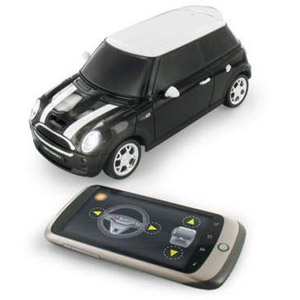 Earlier than you are able to get going, you will must set up the software for the BeeWi Mini on your touchscreen Symbian Nokia. Combined with the Nokia N8, the BeeWi Mini is usually that will work with various other Symbian devices - so consider Mobilefun to view additional suitable mobile phone models. And now to run the software, we earliest experimented with making use of the CD that included the car. There seemed to be no sign of Symbian software on the CD, however, therefore we approached BeeWi to discover how to proceed. As opposed to the CD, yo wi’ll must install the BeeWi application from the Ovi Store - yes, this process works out as good as transferring software from a Computer, but it would've been good to understand about it until now.
As soon as you have downloaded the software, start the application, switch on Bluetooth when requested, and make certain your Mini Cooper S is switched on (there is a activate the bottom). You will be requested to choose a car - pick the BeeWi Mini. Once yo have succeeded in doing so, you’re ready to go.
To manage the BeeWi Mini, you are going to view an onscreen steering wheel, and accelerator and brake peddles. You do not surely have to transform the wheel to move right or left - basically tap the right or left side and it reacts quickly. Sadly, you are able to just press one button at one time, so that you will not be able to speed up, brake pedal or steer at the same time (resulting in crashes).
The good news is, BeeWi has also offered software to help by tilting your Nokia N8. Just tilt ahead for speeding, backwards for reverse, and tilt the nokia N8 phone left or right to steer. In contrast to the touch buttons, you possibly can tilt the device in various instructions to maneuver and steer at one time, so it is far more enjoyable. It is very difficult to manage - showing a very little too ‘all or nothing’, yet it's great exciting when used in restricted locations. You can check again how Nokia N8 can controll BeeWi Mini Cooper S in the video (review again..).
Finally, we want to say that the BeeWi Mini Cooper S is a excellent little game. It is good to be able to control via your Nokia N8- with no the require for any cumbersome controller - and you will also reduce devices to charge or purchase batteries for. As a result, the Mini isvalued at looking at if you’re in the market for a little remote controlled toy for work with around the home.
Via Techradar
Come along after the rest to learn just in case the BeeWi Mini Cooper S is virtually any excellent.
Showing on the BeeWi Mini Cooper S is excellent -belonging to the car headlights into the wheel arches within the exhaust, lots of the popular BMW Mini functions are provide and accurate - also it seems wonderful. Construction is a little plasticy, but this is not automatically a poor problem. Certainly, it would be awesome to touch when the BeeWi Mini Cooper S was created using metal, yet it might also be more heavy - a little something that would be seen when driving a car around as it would be not so quick and extra sluggish.
As soon as you have downloaded the software, start the application, switch on Bluetooth when requested, and make certain your Mini Cooper S is switched on (there is a activate the bottom). You will be requested to choose a car - pick the BeeWi Mini. Once yo have succeeded in doing so, you’re ready to go.
To manage the BeeWi Mini, you are going to view an onscreen steering wheel, and accelerator and brake peddles. You do not surely have to transform the wheel to move right or left - basically tap the right or left side and it reacts quickly. Sadly, you are able to just press one button at one time, so that you will not be able to speed up, brake pedal or steer at the same time (resulting in crashes).
The good news is, BeeWi has also offered software to help by tilting your Nokia N8. Just tilt ahead for speeding, backwards for reverse, and tilt the nokia N8 phone left or right to steer. In contrast to the touch buttons, you possibly can tilt the device in various instructions to maneuver and steer at one time, so it is far more enjoyable. It is very difficult to manage - showing a very little too ‘all or nothing’, yet it's great exciting when used in restricted locations. You can check again how Nokia N8 can controll BeeWi Mini Cooper S in the video (review again..).
Finally, we want to say that the BeeWi Mini Cooper S is a excellent little game. It is good to be able to control via your Nokia N8- with no the require for any cumbersome controller - and you will also reduce devices to charge or purchase batteries for. As a result, the Mini isvalued at looking at if you’re in the market for a little remote controlled toy for work with around the home.
Via Techradar
Monday, March 7, 2011
How to Uninstall Nokia Bubbles From Symbian^3 Smartphone
How to Uninstall Nokia Bubbles From Symbian^3 Smartphone- Nokia Smartphones, there are some readers at my blog asked me how to uninstall nokia bubles in their smartphone. Okay, maybe if you do not know about nokia bubles you can read my latest post. Okay here I will share you completely uninstall Nokia Bubbles and restore a non-beta version of Qt . Here are steps by step:
1. You can go to Settings -> Application manager -> Installed apps.
2. Long-press on Bubblelock (or Nokia Bubbles) from the list and select Uninstall.
3. Install qtdowngrade.sis to C:/Phone Memory (Important to install to correct drive!).
4. Now you can go to application grid and select Options -> Organise.
5. Long-press on QtExamples folder and select Delete.
6. After that go to Settings -> Application manager -> Installed apps.
7. Long-press on qtdowngrade from the list and choose Uninstall.
8. Reboot.
If you got problem to uninstall nokia bubbles, fell free to contact me.
1. You can go to Settings -> Application manager -> Installed apps.
2. Long-press on Bubblelock (or Nokia Bubbles) from the list and select Uninstall.
3. Install qtdowngrade.sis to C:/Phone Memory (Important to install to correct drive!).
4. Now you can go to application grid and select Options -> Organise.
5. Long-press on QtExamples folder and select Delete.
6. After that go to Settings -> Application manager -> Installed apps.
7. Long-press on qtdowngrade from the list and choose Uninstall.
8. Reboot.
If you got problem to uninstall nokia bubbles, fell free to contact me.
Wednesday, March 2, 2011
How to Transfer Files From Nokia Phone to PC
How to Transfer Files From Nokia Phone to PC- Nokia Smartphones, nokia ovi suit does not just act as a handy backup tool in case you lose your phone or the data from it. It also offers a quick, easy and secure way to transfer files from your computer to your handset and vice versa.
In addition to backing up data and restoring it when required, moving files from your phone to your PC is also great way of freeing up space on your handset. If you are the sort of person that likes to store lots of music, this is the ideal way of ensuring you have access to the latest releases as well as the golden oldies. If you are a business user, it means there will be enough space on your phone for the latest important documents.
If you want to transfer music, photos, and videos to and from your nokia smartphone, you have a choice of two methods (Read first how to link your PC with your nokia smartphone):
- Drag and Drop
While in the nokia ovi suit, select the item you want copied and drag it into the folder you want it to be stored in your phone or computer. Copying will take place much in the same way as your PC copies files from one location to another. Videos are automatically converted into the relevant supported format.
- Right Clicking
Just as you right-click on items on your PC, the same can be done here. Right-Click on the item in question and choose “copy to computer” or “copy to phone”. Again, videos are converted automatically to supported format.
Conclusion, there are two ways to transfer files: Drag and Drop and Right Clicking. You can choose one of them to make transfer files on your nokia smartphone easier.
Sunday, February 20, 2011
Personalizing Your Ovi Maps on Nokia
Personalizing your ovi maps- Nokia Smartphones, in addition to map downloads, Nokia’s ovi suit can be used to download voice files for voice guidance in drive and walk navigation. Just select “ Voice Guidance Languages”. Hit download and you’re away. Turn by turn directions are great for helping you get from A to B smoothly, but they are not ideal when the voice guiding you is in a different language as it may mean you are concentrating more on working out what the last world instruction meant rather than on the road ahead.
Thankfully, Ovi Maps can serve up voice guidance instructions in almost 50 languages. Just visit the nokia ovi suit for a list of supported languages, then simply download the one you want and you are ready to roll.
If you want to make things a bit more interesting, the own voice app could help. You can download this application from the ovi store. This practical navigation aid is also a whole lot of fun. It lets you record and share your own voice prompts as well as using the dulcet tones of your friends and family to help to guide you, too.
You just need the latest version of ovi maps in order to take advantages of what the app has to offer. At the time off publication, there was a whole host of pre-recorded voice packages to choose from that others have uploaded to the own voice website. Some of our particular favourites include the drill sergeant, who barks orders at you and expects you to obey his every instruction; the racing commentator, who adds that extra bit of excitement to your journey and the hairdresser, whose main aim is to get you to your destination feeling pampered and relaxed.
- Getting own voice up and running on your handset couldn’t be easier:
- Check whether your handset is compatible using the widget on the own voice website.
- Download Ovi maps if you have not already done so
- Download the own voice app from the ovi store
- Fire up the own voice app
- Follow the step-by-step instructions to record your own voice
- Press stop after each instruction so you know you have got it right
- Start using your voice recording to help guide you. To get it working, go to ovi maps > settings > navigation > drive guidance and select own voice
- Share the recording with other users if you want to by uploading it to the website
Okay, now you can practice to personalizing your ovi maps on your nokia smartphones.
How to Set Up a Route On Your Nokia
How to set up a route- Nokia Smartphones, it is easy to find addresses and places using ovi maps. To search for an address, open Ovi Maps, simply tap search and enter your search terms. To search for a place, just type a keyword in the search field and when the results appear select the one you want.
To add a place to your favourite list, tap on it and then press save. Planning a route is also very easy. You can read preplanning to setting up and saving route. To make your way from A to B with the minimum of fuss, simply:
- Tap on a place icon
- Select navigate
- For pedestrian navigation, select walk to here, while for car navigation, select drive to here. If you want to make multiple stopovers on the way, choose add to route will be calculated within seconds and you can embark on your journey.
Saturday, February 19, 2011
Updating and Uploading Maps to Your Nokia Phone
Updating and Uploading Maps to Your Nokia Phone-Nokia Smartphones, now you can download maps for free using the nokia ovi suit. Getting new and updated maps is a doddle. Nokia Ovi Suit lets you download maps using your computer’s internet connection and they get transferred to your nokia phone quickly and easily.
If you want to know how to check the latest version of ovi maps, you can read it here. You can download the nokia ovi suit to your computer from http://ovi.com. This is likely to save quit a hefty bill in data charges, especially if you are abroad at the time. If Ovi Suit and Maps is new to you, just follow the instructions below to get mapping data you need.
Nokia Map Loader does exactly what its name suggests. It’s a way of getting maps from your computer to your mobile easily, meaning less hassle for you and lower data cost, just like Ovi Suit.
If you want to know how to check the latest version of ovi maps, you can read it here. You can download the nokia ovi suit to your computer from http://ovi.com. This is likely to save quit a hefty bill in data charges, especially if you are abroad at the time. If Ovi Suit and Maps is new to you, just follow the instructions below to get mapping data you need.
- Open Ovi Suit.
- Choose Open Maps.
- From the maps listed ( by region, then country) choose the one you want, then click download.
- The map will download and you will see a progress bar. Its worth nothing that if you’re downloading a country map for the first time. Data will also downloaded relating to the cities in the same continent, which may slow the download down. Subsquent download will not take as long.
- You can then transfer the map to the device-again, a progress bar will be shown.
Nokia Map Loader does exactly what its name suggests. It’s a way of getting maps from your computer to your mobile easily, meaning less hassle for you and lower data cost, just like Ovi Suit.
How to Check the Latest Version of Ovi Maps
How to check you have the latest version of Ovi Maps-Nokia Smartphones, its really important to know about the latest version of ovi maps on your nokia. Here, I will show you how to check the latest version of ovi maps, simply follow these steps:
Steps 1, Launch Maps
Select Maps from either your homescreen, main menu or applications folder. When prompted, select “Online” as your internet settings.
Steps 2, Update app
Maps will automatically detect if your version needs an update. Select “Now” (You can of course choose “Later” should you wish to defer the update.)
Steps 3, Confirm Update
You are taken to the “ Software update” screen to confirm the updates you would like. Ensure Maps in checked (Plus any other applications you may wish to update at the same time) and select the download button.
Steps 4, Download and install
The software update will automatically download and then install. Your version of ovi maps is now up to date.
Congrats! Now you can know the latest version of ovi maps on your nokia smartphone.
Steps 1, Launch Maps
Select Maps from either your homescreen, main menu or applications folder. When prompted, select “Online” as your internet settings.
Steps 2, Update app
Maps will automatically detect if your version needs an update. Select “Now” (You can of course choose “Later” should you wish to defer the update.)
Steps 3, Confirm Update
You are taken to the “ Software update” screen to confirm the updates you would like. Ensure Maps in checked (Plus any other applications you may wish to update at the same time) and select the download button.
Steps 4, Download and install
The software update will automatically download and then install. Your version of ovi maps is now up to date.
Congrats! Now you can know the latest version of ovi maps on your nokia smartphone.
Wednesday, February 16, 2011
Tips Using the FM Transmitter on Nokia
Tips Using the FM Transmitter on Nokia- Nokia Smartphones, a few nokia devices feature an FM transmitter so you can stream your music collection to a radio. Whether you are in the car or want to listen to your music out loud. Before you begin using the FM transmitter in your device, you will have to turn it on and set the frequency to one you can match on your stereo.
To adjust the settings on your nokia device, you are going to need to find the fm transmitter controls within the settings > connectivity menu. Tap the status to on and adjust the frequency so it’s set to a frequency that doesn’t have any radio stations registered to it. This is preset to 90.00, although this maybe different depending on where you live.
Next turn on your stereo and tune in to the same frequency to which you have set your phone. Open up the nokia music player on your phone, tap options and select FM transmitter. You are able to adjust the settings here, too. The Music should start streaming to your stereo. Whenever the transmitter does not work, try these troubleshooting tips:
1. The transmitter only works within two meters of the receiving stereo, so move closer if you are too far away.
2. Obstructions such as other electronic devices can interfere with the signal. Ensure there’s a clear path between your phone and stereo.
3. Whenever the sound is not very clear, try changing the frequency on your phone and the stereo by a little bit. The further away the frequency is from an operating radio station, the better.
Subscribe to:
Posts (Atom)


