Easiest Hack your all Symbian Phone - Two days ago when I travelled to Bali, my friends told me how to hack symbian, off course hack all symbian types. Oh my good, I think its dangerous if you not done carefully. And I searched on internet how to do it. Okay I will share to you how to hack all symbian with easiest method for hacking all Symbian phones.
Root Certificate Hack
Author: stas686
CertHack.sis made by CODeRUS, but all respect please to stas686!
Download archive - http://jimmz.narod.ru/CertHack.zip or https://sites.google.com/site/icoderus/CertHack.zip
Step by step how to hack your symbian all types;
1. Install CertUpdater.sisx
2. Sign CertHack.sis using your own Devcert
3. Install signed CertHack twice , phone now hacked.
You can sign and install any package using Leftup certificate (see Leftup.zip folder).
Its easy to hack your symbian phone, isn't? but be carefully.
Showing posts with label Tutorials. Show all posts
Showing posts with label Tutorials. Show all posts
Tuesday, April 19, 2011

Sunday, March 20, 2011
How To Change The Font Size on Nokia C7

Altering the size of text in your Nokia C7 can easily massive difference to the consumer knowledge. Result in the text smaller, as well as every thing appears pin number sharp, with many different room. Ensure it is larger, as well as it’s in an easier way to see in case your ideas isn’t so great.
Step By Step To Change The Font Size on Nokia C7
Click Menu as well as Settings to begin with. After that Click on Phone as well as Display. It’s after that only a case of hitting Font Size, you are able to select from little, medium and large.
Should you don’t like the new typeface size, just click Typeface Size again, you’ll be able to change it directly back without needing to undergo any of the choices once again.
If you’re tied to other things Nokia C7 related, take a look at our preview Nokia C7 navigation. We will end up being providing you with extensive lessons for all you need to understand, from setting time to wireless diary synchronisation. If there’s anything particular you should understand, check out the manual and then leave the comment. Is there any problem to change the font Size on your Nokia C7?
Thursday, March 17, 2011
How to Send Files Quickly from Nokia N8
How to Send Files Quickly from Nokia N8- Nokia Smartphones, Just about every single gadget includes a optimum file size support, the Nokia N8 for example, I never expert this sort of issue. Yet to generally be certain that any person certainly not results in this issue. WinRar for your Nokia N8 does the work. You can compress a file in your Nokia N8 previously sending it to any place. Songs data files might be big from time to time. You will find a further method that it's possible to quickly send data files to you pc. You can read how to link your PC to your Nokia first.
As soon as the file is compressed, the data format is modified either to rar, .zip, .tar, .7z or .gzip. Your pc will be able to extract the entire file formats but my Nokia N8 is able to only extract .zip files. For those who aren’t considering following all of these ways, you certainly smartest choice would be to possibly copy or transfer the file to a USB or an external storage.
These two solutions are great but in the end of the day, I would like to have the file to my Computer so I could upload it, the quickest technique among these 2 is to copy the file to a USB or an external storage. To deliver a file to your Personal computer via e-mail could be busy that you need a WLAN connection or a data plan to move a file that huge.So its easy how to send files from the nokia N8, isn't?
As soon as the file is compressed, the data format is modified either to rar, .zip, .tar, .7z or .gzip. Your pc will be able to extract the entire file formats but my Nokia N8 is able to only extract .zip files. For those who aren’t considering following all of these ways, you certainly smartest choice would be to possibly copy or transfer the file to a USB or an external storage.
These two solutions are great but in the end of the day, I would like to have the file to my Computer so I could upload it, the quickest technique among these 2 is to copy the file to a USB or an external storage. To deliver a file to your Personal computer via e-mail could be busy that you need a WLAN connection or a data plan to move a file that huge.So its easy how to send files from the nokia N8, isn't?
Sunday, March 13, 2011
How to Make Full Format Your Bricked N8
How to Make Full Format your bricked N8- Nokia Smartphones, Do you ever got "brick" problem after working to have fun with FontRouter on Nokia N8?. For that reason, I got information that there is way to recover it. Okay here is the solution to full format and create bricked N8 come alive for a second time:
- Now you must turn off your nokia N8 phone.
- After that Hold "Volume Down + Camera Key + Menu Key" and press power button till your Nokia N8 phone shake.
- Have to wait until display screen show correctly.
Make sure you be aware that I found these troubles after doing full format your bricked N8:
1. You can lost Ovi Maps. On the other hand, you could possibly reinstall it by download ovi maps here.
2. You can lost Ovi Store 2.0 and you can not reinstall it since it usually display "Unable to install".
Consequently make sure you do not do full format your bricked N8 if not required or really I must state that do it just as your last Decision.
Saturday, March 12, 2011
How to Set Up 6 Home screens on Nokia N8
How to Set Up 6 Home screens on Nokia N8- Nokia Smartphones, allow me to explain how to set up 6 (six) homescreens. You know that set up the 3 home screens on Nokia N8 or any other Symbian^3 device is really easy, right now we are going to discover ways to set up 6 home screens on our device.
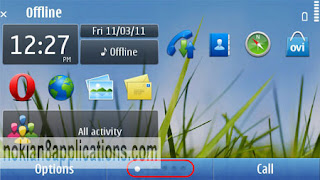
Notes before you set up 6 home screens:Tips Set Up 6 home screens on Nokia N8 or another symbian ^3 operating system device :
This method will remove your phone’s settings, but doesn't delete files or apps installed in C:\ or E:\
All of responsibility for what could happen to your device is yours and yours alone. lol
- First, You must download and unzip the file 200159c0.
- After that you have to connect your nokia phone to your PC in mass storage mode. Automatically it connects as “Nokia Ovi Suite”. To operate as Mass Storage to go to “Menu> Settings> Connectivity> USB” and pick “Mass storage”. If you do this, Ovi Suite must be closed in the Computer (Laptop, Notebook) or connects quickly in Ovi Suite mode.
- Okay now you must go from the PC to the phone memory, E:\Private\200159c0 and copy the contents of the directory you have unzipped previously (install and import). In cases where no exists the folder, copy the folder (200159c0) to E:\Private.
- Next go to “Menu> Settings> Phone> Phone management> Factory settings> Restore”. In case explained that you have to close every connections, press the Power and set up in “Offline. “
- Soon after rebooting the nokia phone, press Options from the desktop and select “New Home screen”. And what do you look now? You have 6 homescreens on your nokia N8 !.
Friday, March 11, 2011
How To Upload Photos To Facebook on Nokia C7

Firstly, you must have an Ovi Account, and you will also need to type in information for your Facebook or Twitter account. It's fine to use several pictures from the Facebook application itself or simply add photos completely from the camera. To work on this, go through the small camera icon in the Facebook app.
If you do not have knowledge about Nokia C7, you can read Nokia C7 Ultimate User Guide first. Or you can read post about nokia C7 navigation or nokia C7 review. Okay now, after this you get asked what you deserve to share, having the tricks to pick from these particular choices: Photo(s) from the Gallery, Photo from the Camera and Video from the Gallery. Every do the things they claim to, so that it is simple to upload your content. If you want to edit photos on nokia, you can read our last post before.
So now clicking on the Gallery option takes you straight to your snaps - it is possible to click on up to six to upload - just press OK as soon as you have selected the best ones. Clicking the Camera option allows you to get a photo there and then, quickly uploading it immediately.
However, if there are other things you'd like to learn, check out our Nokia C7 Ultimate User Guide. We will be providing you with more information on all you need to know - from setting the time to wireless syncing. It’s easy to upload photographs (photos, pictures, images) to facebook using Nokia C7, isn't it?
Monday, March 7, 2011
How to Uninstall Nokia Bubbles From Symbian^3 Smartphone
How to Uninstall Nokia Bubbles From Symbian^3 Smartphone- Nokia Smartphones, there are some readers at my blog asked me how to uninstall nokia bubles in their smartphone. Okay, maybe if you do not know about nokia bubles you can read my latest post. Okay here I will share you completely uninstall Nokia Bubbles and restore a non-beta version of Qt . Here are steps by step:
1. You can go to Settings -> Application manager -> Installed apps.
2. Long-press on Bubblelock (or Nokia Bubbles) from the list and select Uninstall.
3. Install qtdowngrade.sis to C:/Phone Memory (Important to install to correct drive!).
4. Now you can go to application grid and select Options -> Organise.
5. Long-press on QtExamples folder and select Delete.
6. After that go to Settings -> Application manager -> Installed apps.
7. Long-press on qtdowngrade from the list and choose Uninstall.
8. Reboot.
If you got problem to uninstall nokia bubbles, fell free to contact me.
1. You can go to Settings -> Application manager -> Installed apps.
2. Long-press on Bubblelock (or Nokia Bubbles) from the list and select Uninstall.
3. Install qtdowngrade.sis to C:/Phone Memory (Important to install to correct drive!).
4. Now you can go to application grid and select Options -> Organise.
5. Long-press on QtExamples folder and select Delete.
6. After that go to Settings -> Application manager -> Installed apps.
7. Long-press on qtdowngrade from the list and choose Uninstall.
8. Reboot.
If you got problem to uninstall nokia bubbles, fell free to contact me.
Thursday, February 24, 2011
How to Link Your PC With Your Nokia Smartphones
How to Link your PC with your Nokia Smartphones, before synchronise all your valuable information, you need to let your nokia smartphone and your computer get to know each other. Connecting your nokia smartphone to PC is easy, and can be done in one of two ways: using either Bluetooth or a USB cable.
The latter is undoubtedly the fastest way of transferring large amounts of information, so we would recommended using a USB cable for downloading and exporting maps, music or photos.
Synchronising your nokia device manually is easy. Just select the “Sync all” option at the bottom of the screen next to the My Phone icon and all your data will be synchronised. You can also set your device and computer to sync automatically. Select options in the tools menu then device sync. Then simply tick what you want to be synchronized automatically, such as photos, music or contacts.
Backing Up and Restoring
Backing up your data is just as simple:
The latter is undoubtedly the fastest way of transferring large amounts of information, so we would recommended using a USB cable for downloading and exporting maps, music or photos.
Synchronising your nokia device manually is easy. Just select the “Sync all” option at the bottom of the screen next to the My Phone icon and all your data will be synchronised. You can also set your device and computer to sync automatically. Select options in the tools menu then device sync. Then simply tick what you want to be synchronized automatically, such as photos, music or contacts.
Backing Up and Restoring
Backing up your data is just as simple:
- Connect your handset to your computer, select nokia ovi suit, then OK.
- Opt for Tools > Backup in the nokia ovi suit, which will then compile a list of information on your phone that can be backed up.
- Select what you want to back up. You can change the backup file destination by using browse to find an alternative location.
- Click start to begin the backup. If you need to pause the process click “stop” and nokia ovi suit will come to a halt when it reaches a safe point.
- Hit finish, and you are done.
- Follow step 1 as above.
- Select Tools > Restore.
- Using the pull-down backup menu, select the items you want to restore.
- Hit start to kick off the restoration process. Again, hitting stop will stop the restoration process only when nokia ovi suit has reached a safe point to do so.
- Click finish to exit.
Saturday, February 19, 2011
Updating and Uploading Maps to Your Nokia Phone
Updating and Uploading Maps to Your Nokia Phone-Nokia Smartphones, now you can download maps for free using the nokia ovi suit. Getting new and updated maps is a doddle. Nokia Ovi Suit lets you download maps using your computer’s internet connection and they get transferred to your nokia phone quickly and easily.
If you want to know how to check the latest version of ovi maps, you can read it here. You can download the nokia ovi suit to your computer from http://ovi.com. This is likely to save quit a hefty bill in data charges, especially if you are abroad at the time. If Ovi Suit and Maps is new to you, just follow the instructions below to get mapping data you need.
Nokia Map Loader does exactly what its name suggests. It’s a way of getting maps from your computer to your mobile easily, meaning less hassle for you and lower data cost, just like Ovi Suit.
If you want to know how to check the latest version of ovi maps, you can read it here. You can download the nokia ovi suit to your computer from http://ovi.com. This is likely to save quit a hefty bill in data charges, especially if you are abroad at the time. If Ovi Suit and Maps is new to you, just follow the instructions below to get mapping data you need.
- Open Ovi Suit.
- Choose Open Maps.
- From the maps listed ( by region, then country) choose the one you want, then click download.
- The map will download and you will see a progress bar. Its worth nothing that if you’re downloading a country map for the first time. Data will also downloaded relating to the cities in the same continent, which may slow the download down. Subsquent download will not take as long.
- You can then transfer the map to the device-again, a progress bar will be shown.
Nokia Map Loader does exactly what its name suggests. It’s a way of getting maps from your computer to your mobile easily, meaning less hassle for you and lower data cost, just like Ovi Suit.
How to Check the Latest Version of Ovi Maps
How to check you have the latest version of Ovi Maps-Nokia Smartphones, its really important to know about the latest version of ovi maps on your nokia. Here, I will show you how to check the latest version of ovi maps, simply follow these steps:
Steps 1, Launch Maps
Select Maps from either your homescreen, main menu or applications folder. When prompted, select “Online” as your internet settings.
Steps 2, Update app
Maps will automatically detect if your version needs an update. Select “Now” (You can of course choose “Later” should you wish to defer the update.)
Steps 3, Confirm Update
You are taken to the “ Software update” screen to confirm the updates you would like. Ensure Maps in checked (Plus any other applications you may wish to update at the same time) and select the download button.
Steps 4, Download and install
The software update will automatically download and then install. Your version of ovi maps is now up to date.
Congrats! Now you can know the latest version of ovi maps on your nokia smartphone.
Steps 1, Launch Maps
Select Maps from either your homescreen, main menu or applications folder. When prompted, select “Online” as your internet settings.
Steps 2, Update app
Maps will automatically detect if your version needs an update. Select “Now” (You can of course choose “Later” should you wish to defer the update.)
Steps 3, Confirm Update
You are taken to the “ Software update” screen to confirm the updates you would like. Ensure Maps in checked (Plus any other applications you may wish to update at the same time) and select the download button.
Steps 4, Download and install
The software update will automatically download and then install. Your version of ovi maps is now up to date.
Congrats! Now you can know the latest version of ovi maps on your nokia smartphone.
Saturday, February 5, 2011
How to Use Facebook/Twitter Profile Image in Contacts Nokia N8
How to use Facebook or Twitter Profile Image in Contacts Nokia N8 (Symbian^3), nokia smartphones, the capability of Symbian^3 phone that have been integrated with a variety of social media services (including Facebook, twitter, etc.): provides many benefits. In addition, you can view the status of Facebook and Twitter friends, photos profile image on Facebook can also be used as a photo profile in the list of contacts for the same name. So, no need to enter one by one photo on your mobile phone contacts. As a result, the contact list view becomes attractive with photographs of your friends on facebook. Wow..It’s really interesting, isn’t?
Okay follow these steps how to use Facebook or Twitter Profile Image in Contacts Nokia N8:
Okay follow these steps how to use Facebook or Twitter Profile Image in Contacts Nokia N8:
- Open the Contacts menu
- Select and open the contact name you want to be a photo
- In the name of a contact, click the link "Social Networks". Before clicking, make sure you are registered to the Ovi service and enable the application of social network
- Select integration for Facebook
- The application will automatically detect facebook name on the same person in your contacts list. Of course, if you change the name, so different from the name on Facebook, the result will be different too
- Click''More"
- There are 2 options, namely the "View profile" and "Use this picture in contact cards". Select by clicking the last option
- Then the screen will be given information "Picture copied"
- Ahaa.. Photos from facebook immediately displayed in the contacts list.
Tuesday, February 1, 2011
16 Creative Ways to Improve the Battery Life On Your Nokia Smartphone

Sometimes we often overlook battery maintenance on our cell phones, but this one thing that most vital component in a mobile phone. I have a friend named Lisa that are new to Nokia S60 have been experiencing battery problems with her nokia smartphone. And after I checking her devices, wow I just realized that the problem wasn't the device, was the user ! Okay the following tips how to increase your mobile battery life durable:
1. Turn off the phone. What !!! he he. I mean turn phone off when no network. When you are in an area where your mobile provider has no network,switch off the phone. I recommend you to turn off your phone if you are in a place where is likely to get the signal difficult. If the phone kept active while the phone constantly searching for signals, this will make your phone battery power becomes weak. If your phone has an offline mode, then use it to good effect in such a situation.
2. Turn off one of the voice features that are not important, do not let active throughout the day. You don’t really need keypad tones to be on, do you? You can also set up the ringtone. Low volumes on the ringtones as the louder the ringtone, the shorter the battery life.
3. Do not switch the ringtone and vibration together because simply reduce the battery energy, activate one of them. While at the movies it's good to switch the vibration feature, but when in public places like malls, stations and airports, to enable ringtone can be a better choice. I usually set up a vibrating profile to be used in places like cinema or theatre and in all other profiles I have vibrating turned off.
4. Reduce your phone's screen brightness to 50 or up to 10% if not, the battery is unused for more energy-efficient. not too low, otherwise you will destroy your vision. Nokia’s smartphones light sensor helps adjust your display brightness according to the external lighting conditions, so keep it switched on at all times.
5. Turn off Bluetooth when not in use. For information only, active Bluetooth cell phone battery will reduce energy faster. Check on the top right of your nokia screen, if the Bluetooth logo is there you need to turn it OFF. After that go to Bluetooth and select OFF.
6. Just as Bluetooth, infrared feature also turn off when not in use. It happens a lot of times that after transferring a file via infrared we forget to switch it of.
7. Turn off other applications that are not used. If you are not using an application switch it off.
8. Put the phone in a normal temperature so that no damage occurs due to temperature is too high or low. For example, do not carry the phone in the car the sun, on a laptop or game console hot temperature.
9. Immediately unplug the charger from the phone if the phone battery is full.
10. Charge the battery was fully and immediately refills your battery if it has run out. Usually, a lot of us tend to charge the battery when it has been used only midway. But this isn't good for the battery as more charge/discharge cycles on the battery means lower battery life. You have to charge the battery only when you're low on power. In addition to, fully discharge the battery once a month to ensure its proper functioning.
11. If you want a durable battery, do not often play games via the phone, listening to mp3, make video calls , photo editing or browsing. All these activities will only speed up your cell phone battery runs out.
12. Set the backlight setting, do not let the flame duration is too long, just 5 to 15 seconds.
13. Make certain the GPS is off. Do not leave Google Maps, Nokia Maps, GPS Data or any other navigation application open. The GPS will be ON and you actually do not need it, this will extend your battery life.
14. You have to check WLAN Scanning is OFF. So if you've your device in your pocket and the WLAN scanning is ON you're just spending battery life. You can turn it ON when you need it.
15. Packet Data must be OFF. You have to set the Packet Data to ”When Needed”. Go to Settings> Connection>Packet Data> and switch to ”When Needed”.
16. Update your Firmware. Every once in a while Nokia releases new firmwares for the phones. The firmware improve most of the time the battery life. You can read here how to update firmware on your nokia phone.
These tips can go a long way to help you increase your battery life. And how about you? How long does your battery last and how often do you use your phone? Have any other tips? Feel free to add tips improve battery life in comments below.
How to Upgrade Firmware on Nokia Phone - Step By Step Tutorial
Upgrades made to improve the ability of your cell phone. Although the same brand and type of phone, but if different firmware certainly is not the same mobile phone capabilities. Mobile phones with the most recent firmware performance will be better. If you find the phone is often an error, access is felt to slow down, application errors and so forth, immediately upgrade / update your cell phone when new firmware is available.
Upgrade to a particular type is also possible the addition of several features. For users who want to upgrade cell phone vendors please visit the site. Considering the upgrades are now not only have to be done by authorized service center. Originally stay connected to the Internet, you can do it yourself. Here I use my Nokia N8.
For Nokia phones, service upgrades consist of two versions:
1. First, upgrade directly on the phone (Over the Air), these services require a GPRS or Wifi. However, currently only the Nokia specific type that can be upgraded OTA.
2. Second is a service upgrades via a Personal Computer/Notebook/Laptop, by downloading the software updater and upgrade/ update process took place when the software is run. The upgrade process can only be done online.
Note before starting the upgrade steps, please:
1. If the latest firmware available, the phone will automatically download the installer. This file is small (about 1-30MB) and costs incurred depending on the service you use (preferably unlimited)
2. After successfully download, a box will appear. Install the firmware, press More> Install. This process will take about 5 to 15 minutes.
3.When the process dies (he he he) and after that the phone will restart with the latest firmware.
4. Next will come the confirmation that the upgrade is complete. But if you want to upgrade at a later time you can save the installer while in the phone memory.
PC/Notebook/Laptop with minimum requirements :
1. Download Nokia Software Updater in www.nokia.co.uk/A4226014
2. Select the type of phone that would be upgraded, if you do not find your nokia phone, it means your nokia phone can not be to upgrade.
3. This page you will download the Nokia Software Updater, you can find the exe file size 16 MB.
4. After a successful download, install and run the software on the PC.
5. Now connect phone with PC using data cable. Do not forget to connect the phone with a charger to avoid cell phone battery runs out during the upgrade process runs or battere must be FULL.
6. Press the 'Start'.
7. Select the profile 'General' and then press the 'Next'.
8. Nokia Software Updater will identify the phone and look for the latest updater available.
9. If your phone firmware is the latest then upgrade process will not run.
10. Conversely, if the latest firmware available, the Nokia Software Updater will start the upgrade process.
11. Wait until the confirmation that the upgrade is complete.
Finnish..You can choose upgrade firmware via Over The Air (OTA) or via PC. Is up to you, friends.
Upgrade to a particular type is also possible the addition of several features. For users who want to upgrade cell phone vendors please visit the site. Considering the upgrades are now not only have to be done by authorized service center. Originally stay connected to the Internet, you can do it yourself. Here I use my Nokia N8.
For Nokia phones, service upgrades consist of two versions:
1. First, upgrade directly on the phone (Over the Air), these services require a GPRS or Wifi. However, currently only the Nokia specific type that can be upgraded OTA.
2. Second is a service upgrades via a Personal Computer/Notebook/Laptop, by downloading the software updater and upgrade/ update process took place when the software is run. The upgrade process can only be done online.
Okay here step by step how to upgrade/update firmware by Over the Air (OTA)
Note before starting the upgrade steps, please:
- Make sure the battery is fully charged
- Toll for the internet connection should be sufficient / via wifi
- Upgrade will erase all data phones. So, first back up your phone data. If you do not know how to back up your nokia smartphones you can read here.
- Remove the password protect on the Memory Card (if installed) Menu > Tools > Memory > Remove Password
- Move / off the memory card (MicroSD) from Your Phone Menu > Tools > Settings > General > Security > Phone and SIM
- Set Pin code request: Off
- Set autolock period: None
- Return the lock / security code is the default: 12345
- Remote Lock: No
- Confirm SIM services: No
- Uninstall antivirus installed
- Uninstall software in use phone protection

1. If the latest firmware available, the phone will automatically download the installer. This file is small (about 1-30MB) and costs incurred depending on the service you use (preferably unlimited)
2. After successfully download, a box will appear. Install the firmware, press More> Install. This process will take about 5 to 15 minutes.
3.When the process dies (he he he) and after that the phone will restart with the latest firmware.
4. Next will come the confirmation that the upgrade is complete. But if you want to upgrade at a later time you can save the installer while in the phone memory.
Okay here step by step how to upgrade/update firmware via Personal Computer/Notebook/Laptop:
PC/Notebook/Laptop with minimum requirements :
- Operating system Windows 2000 (SP4 or later) or Windows XP (SP1 or SP2) or Windows Vista
- Memory 256 MB RAM
- Processor Intel ® Pentium ® 4, 1.0 GHz or higher
- Internet Connection
- USB Port
- USB data cable to a compatible phone
Read first: Upgrade will erase all data phones. So, first back up your phone data before doing the upgrade.The steps are:
1. Download Nokia Software Updater in www.nokia.co.uk/A4226014
2. Select the type of phone that would be upgraded, if you do not find your nokia phone, it means your nokia phone can not be to upgrade.
3. This page you will download the Nokia Software Updater, you can find the exe file size 16 MB.
4. After a successful download, install and run the software on the PC.
5. Now connect phone with PC using data cable. Do not forget to connect the phone with a charger to avoid cell phone battery runs out during the upgrade process runs or battere must be FULL.
6. Press the 'Start'.
7. Select the profile 'General' and then press the 'Next'.
8. Nokia Software Updater will identify the phone and look for the latest updater available.
9. If your phone firmware is the latest then upgrade process will not run.
10. Conversely, if the latest firmware available, the Nokia Software Updater will start the upgrade process.
11. Wait until the confirmation that the upgrade is complete.
Finnish..You can choose upgrade firmware via Over The Air (OTA) or via PC. Is up to you, friends.
(NEW UPDATE) Firmware Update via Nokia Ovi Suite
Download the latest version of Nokia Ovi Suite Nokia Europe (note the system requirements)
Download Here
Start Ovi Suite> Tools> Software Updates.
It measures the same as the PC Suit (just follow the commands in the OVI suite)
Monday, January 31, 2011
How to BackUp Your Nokia Phone with PC Suit
Many features offered by Nokia PC suite, including back up. Nokia PC suite for your convenience can be connected wirelessly with infrared and bluetooth for your maximum comfort. Nokia PC-suite software can be installed in two ways, namely from the CD-ROM included in the sales package and downloaded on the Internet. Here are step by steps how to back up your Nokia smartphone using PC suit:
1. Download software Nokia PC suit here and install it your computer or netbook
2. Run the program, then connect your nokia cell phone with a data cable / bluetooth to a computer
3. Click the Backup icon, so the window appears as shown below:

4. Wait a few seconds until a window of data backup options like the following picture:

5. Select data you want back up and then press the right arrow button
6. Select where the file will saved

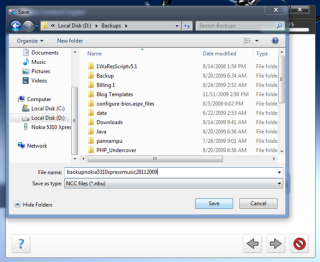

7. After that, press the right arrow button again. Wait until the backup process 100%.


Is easy to backup your nokia smarthones, isn't?
Friday, January 28, 2011
Tutorial Download Apps/Games From The Ovi Store to PC
We know that download and install applications from the nokia ovi store is really easy. There are a lot of tips (tutorial) to download apps ovi store from pc. Here is a technique to download apps ovi store directly to your computer:


1. Go to https://store.ovi.com
2. Select the application / game that will be downloaded. For example: Facebook Apps

3. Click button "send to friend"
4. After that look into the address bar, it will appear like this:

5. Replace the "send-to-friend" to "download" (without the quotes), then enter

6. Now download the file

7. If the files are downloaded .jad , use notepad and search for the file download link .jar

If the files are downloaded .dm, use notepad++ , change like this picture

Save the file . sis

8. Finish
Tags: how to upload ovi store, download software ovi store, download games ovi store, free apps ovi store, how to download ovi store app to desktop, how to download ovi store from to pc, ways to download ovi store app to pc, how to file ovi store app to pc, how to play ovi store to pc, how demo ovi store app to pc, how to install ovi store app to pc
Subscribe to:
Posts (Atom)


